A Quiet Look at the Sensors in a Phone
Notice how phone sensors respond to orientation, proximity, and light with simple observations that reveal useful behavior without identifying exact hardware.
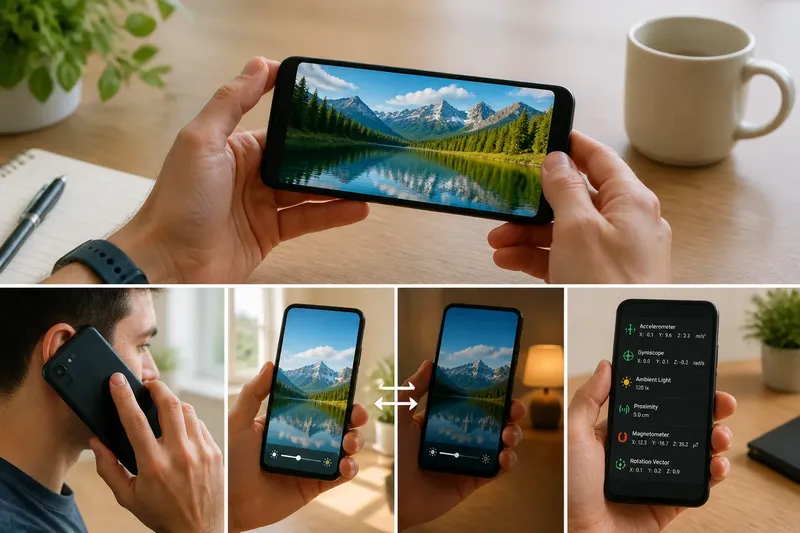
To notice phone sensors in everyday use, watch what changes when you rotate the screen, bring a hand near the display, or move between bright and dim places. These observations can tell you how the phone responds, but they cannot identify an exact component or prove which sensor produced the result.
A useful way to look is to choose one of three approaches: observe ordinary behavior, compare it with a settings control, or use a sensor-viewing app. Each gives a different level of detail. Pick the least involved option that answers your question, and treat the phone’s response—not a guessed parts list—as the evidence.
Which observation approach suits you?
Everyday observation suits someone who wants to understand a feature without installing anything. Watch the display during a call, rotate a screen that supports rotation, or notice brightness changes as you move around. This approach is simple, but software settings and app choices can affect what you see.
Settings comparisons suit someone who wants to separate a feature’s behavior from an automatic setting. Temporarily compare the phone with a relevant option enabled and disabled, then restore your preferred setting. The menu names and available controls differ between devices, so follow the labels on your own phone.
A sensor-viewing app suits someone who wants to see changing readings rather than only the final screen behavior. Such apps may display values or report sensor categories, but they do not necessarily reveal the physical layout, component model, or full signal-processing path. Choose this option only if the extra detail answers a real question; ordinary observation is often enough.
Say you want to know why a display dims when you put the phone down. You could first observe the screen in a bright room and then in a shaded spot, keeping the same app open; if its brightness changes, you have noticed a response to conditions, not identified a particular sensor or ruled out a manual setting.
What can orientation behavior tell you?
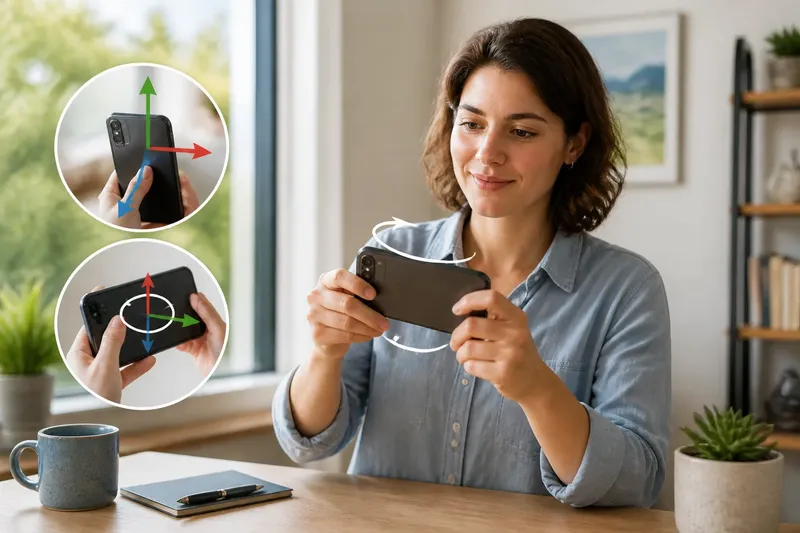
Open an app that allows screen rotation, such as a photo viewer or a video player, and turn the phone from upright to sideways. Note whether the content rotates, stays fixed, or offers an on-screen control. Repeat in another app, because an app can lock its layout even while the phone detects a change in orientation.
This is a useful observation of the whole device response: motion is sensed, software interprets signals, and the operating system or app decides whether to rotate the interface. A rotation icon or quick-settings control can help you check whether rotation is disabled. If the display does not turn, that alone does not show that the phone lacks a particular sensor.
For a calmer comparison, keep the phone in one position and switch only the rotation control, then repeat the turn. This helps distinguish a setting’s effect from the app’s own behavior. Avoid shaking or quickly spinning the device; a gentle turn gives a clearer view of what the interface does without inviting assumptions from an unusual motion.
How can you observe proximity during a call?
During a call, many phones turn off or dim the touchscreen when the device is brought near a face, then restore it when moved away. You can notice this behavior without touching the screen: begin a call, watch the display, and move the phone away from your face. Keep the conversation short and use a contact or service you can call appropriately.
The result describes a behavior, not a confirmed sensor location. A phone may use a proximity sensor, another sensing arrangement, or software decisions involving more than one input. Cases, screen protectors, dirt near the top edge, call settings, and the calling app can also affect what happens.
If the screen stays on, do not press random areas while the phone is against your face; an active touchscreen can register unintended taps. Instead, check the call-screen settings and make sure an accessory is not covering the area near the display. For a persistent problem, consult the phone maker’s support guidance rather than trying to uncover or alter internal parts.
What does automatic brightness reveal?
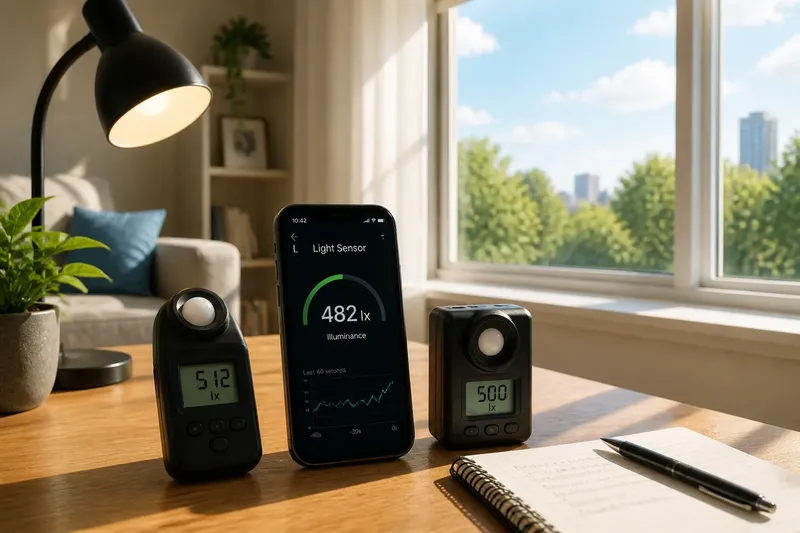
To observe ambient-light response, open a mostly static screen and move between a well-lit room and a shaded area. Leave the brightness control in its automatic mode and allow the screen to settle before noting a change. Then compare with automatic brightness switched off, if your settings provide that option.
Automatic brightness is not a live light meter displayed on the screen. The phone may smooth changes, apply preferences learned from earlier adjustments, or combine sensor input with other software rules. A brightness change is evidence that the display behavior responded; it is not a precise reading of the room’s illumination.
Keep the comparison simple: use the same screen, avoid changing the brightness slider midway, and note whether the display becomes easier or harder to see. If a case or your hand shades the top of the phone, the result may differ from what you expect. That is still useful information about how placement can influence the phone’s response.
What do app readings and settings actually show?
Can a sensor app identify the exact hardware?
Usually, an app can show what readings or sensor categories the operating system makes available, not a definitive inventory of physical parts. Labels may be broad, and a displayed value can be processed or combined before the app receives it.
Why does the same phone behave differently in two apps?
Apps can choose different rotation rules, screen layouts, call interfaces, and brightness behavior. Compare the same action in more than one app before treating a difference as a sensor fault.
Can a phone respond without showing a reading?
Yes. A feature can use sensor input internally and expose only an action, such as turning off the display during a call. The absence of a visible number does not mean the phone made no observation.
Should you install an app just to check a sensor?
Not if the ordinary behavior already answers your question. If you install one, review its permissions and use it to observe broad changes rather than to infer component identity from a label.
How do you choose a useful observation?
Match the method to what you want to know. If you are curious about a daily feature, observe it in its normal setting. If you need to separate an automatic control from a fixed one, compare the relevant setting. If you specifically want to see available signal values, consider a reputable sensor-viewing app, while keeping its labels in perspective.
- For orientation: rotate a supported app gently, then check its rotation control if the screen stays fixed.
- For proximity: observe the call display as the phone moves near and away from your face, without pressing the screen.
- For ambient light: compare the same screen in bright and shaded locations with automatic brightness on, then off if useful.
- For a settings question: change one relevant control at a time and restore your preferred configuration afterward.
- For extra signal detail: use an app only when its displayed readings would add something to the behavior you have already observed.
The most reliable conclusion is often modest: the phone changed its behavior under a particular condition. That observation can help you choose a setting, notice when an accessory blocks a response, or describe a problem clearly to support staff. A quiet look at phone sensors is most useful when it stays within that boundary: notice the response, check the controls, and leave exact hardware claims to information specific to your device.